


-
![]()
-
![]()
-
![]()
-
![]()
-
![]()
-
![]()
-
![]()
-
![]()
-
![]() Access Hard Drive from Another Computer in 3 Proven Ways [2026 Ultimate Guide]
Access Hard Drive from Another Computer in 3 Proven Ways [2026 Ultimate Guide] February 12,2026
 6 min read
 -
![]()
Page Table of Contents
To recover lost partitions, you should apply partition recovery software that can scan the hard disk and find lost partitions. Try EaseUS Data Recovery Wizard or EaseUS Partition Recovery, which can be a wise choice.
PAGE CONTENT:
Generally, partitioning is something necessary when operating a computer and saving data, dividing memory or mass storage into isolated sections. However, partitions on the local or external hard drive might be lost. In this case, the most important thing is to avoid data loss on the lost partition.
When we talk about how to recover lost partitions, a professional data recovery program is essential. EaseUS Data Recovery Wizard is an all-around file recovery tool to help you perform lost partition recovery and restore your essential data from a deleted partition, lost partition, RAW partition, etc., in clicks!
You Can Trust EaseUS Data Recovery Software
EaseUS Data Recovery Wizard has acquired an extensive technical base in data recovery and trusted by billions of users since 2005. Check out reviews on G2.
Lost Partition Recovery Is Possible or Not ❓
The answer is YES.
Normally, when a partition is deleted, the system deletes the assignment to that location on the hard disk, allowing the memory segment to be overwritten as needed. However, as long as this part of the disk remains unchanged, there is still a chance to use the partition recovery utility to undelete the partition.
The more times you use your computer, the more likely new data will overwrite this part of the hard drive. Therefore, stop using the hard disk immediately when you find a partition missing.

Lost Partition Recovery and Data Restore
Stop writing new data to your formatted hard drive or partition from now on. Then launch EaseUS Data Recovery Wizard and scan your formatted partition.

How to Recover Deleted Partitions | 3 Steps
It's approachable and simple to employ the EaseUS Data Recovery Wizard to recover data from deleted partitions and also the entire partition. Do you want to recover lost partitions on external hard drives or other storage devices? Check out EaseUS Data Recovery Wizard, it's exclusively designed to recover deleted or lost partitions.
✨Stunning features of the EaseUS partition recovery tool:
- Intuitive and easy-to-use partition recovery software, no IT experience required
- Quickly scan and display the list of deleted files within a short time
- Support all kinds of partitions, including FAT, NTFS, Ext2, and Ext3 volumes
- Offer Raw partition recovery feature
- Seamlessly compatible with Windows 11/10/8.1/8/7/Vista/XP/Server
The following guide can help recover deleted partitions on the hard drive:
Notice: It supports NTFS/exFAT/FAT32/BitLocker recovery of lost partitions, such as partition deletion, uninitialized disk, and unallocated space, as well as recovery of partitions that become RAW.
Step 1. Search for Lost Partitions
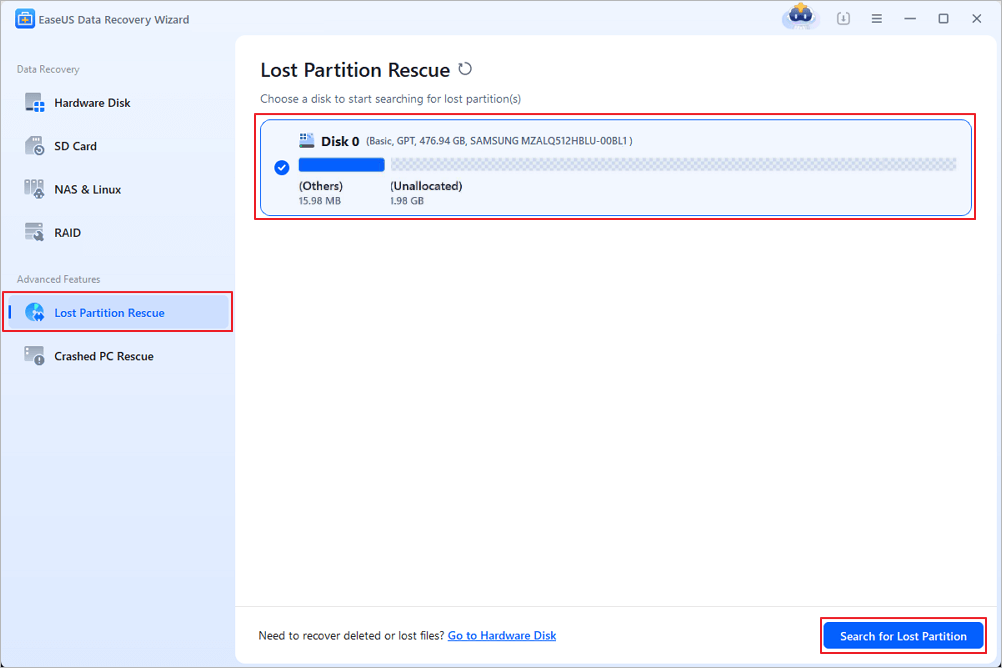
First, choose "Lost Partition Rescue" on the left and click "Start" to initiate the partition scan. Your disk will be displayed, including existing and lost partitions (marked as unallocated). Then click "Search for Lost Partition" to begin the scan.
Step 2. Check Files in the Partition
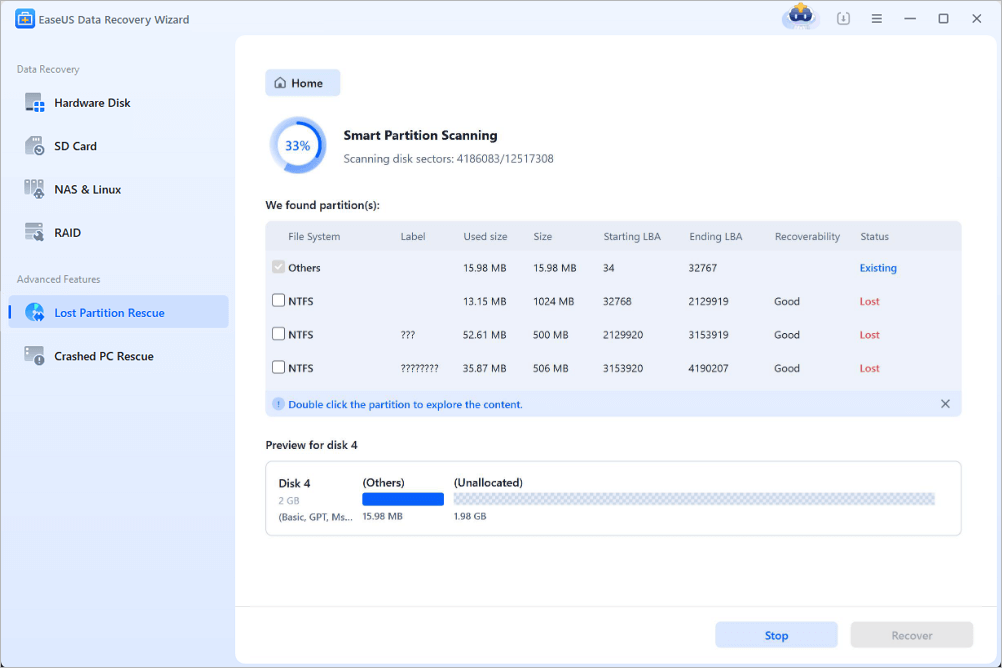
Wait for the smart partition scanning. This process may take several minutes, depending on the severity of the partition loss. While waiting, you can move the cursor to the partition you want to view the files and data in it.
Step 3. Select and Restore the Partition
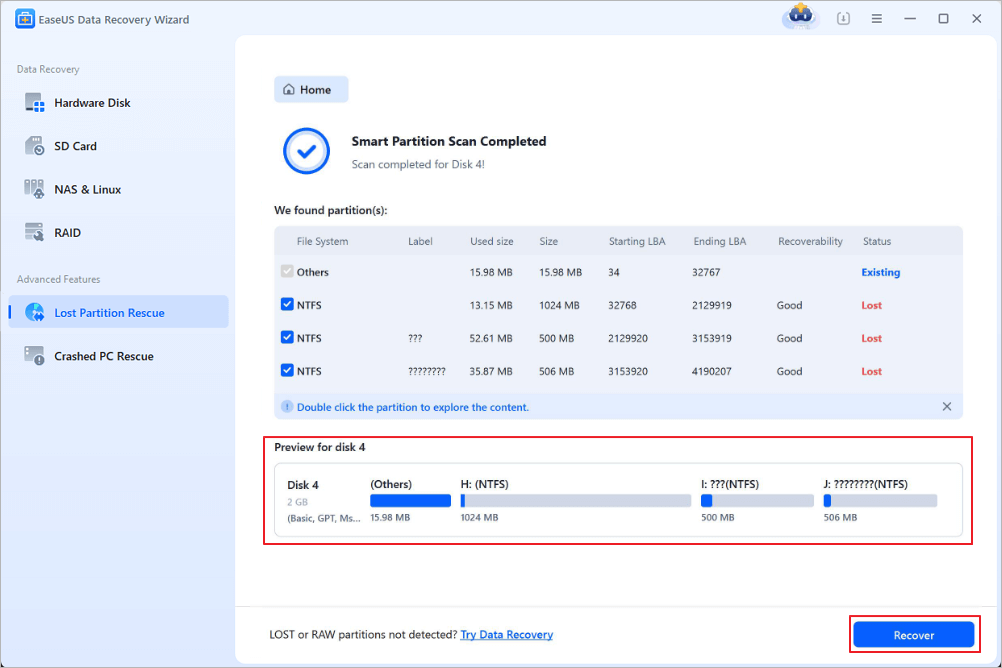
Select the partitions you want to recover from the list of lost partitions that have been scanned. Their corresponding information will also be displayed below. After selecting, click "Recover" to restore your disk partition settings.
How to Recover Files from Deleted Partitions | 3 Steps
EaseUS lost partition recovery software offers you the simplest way to recover files from a lost or deleted partition in Windows 11, 10, and older versions.
Follow the step-by-step guides below to recover data from missing partitions:
Step 1. Select and scan the lost partition
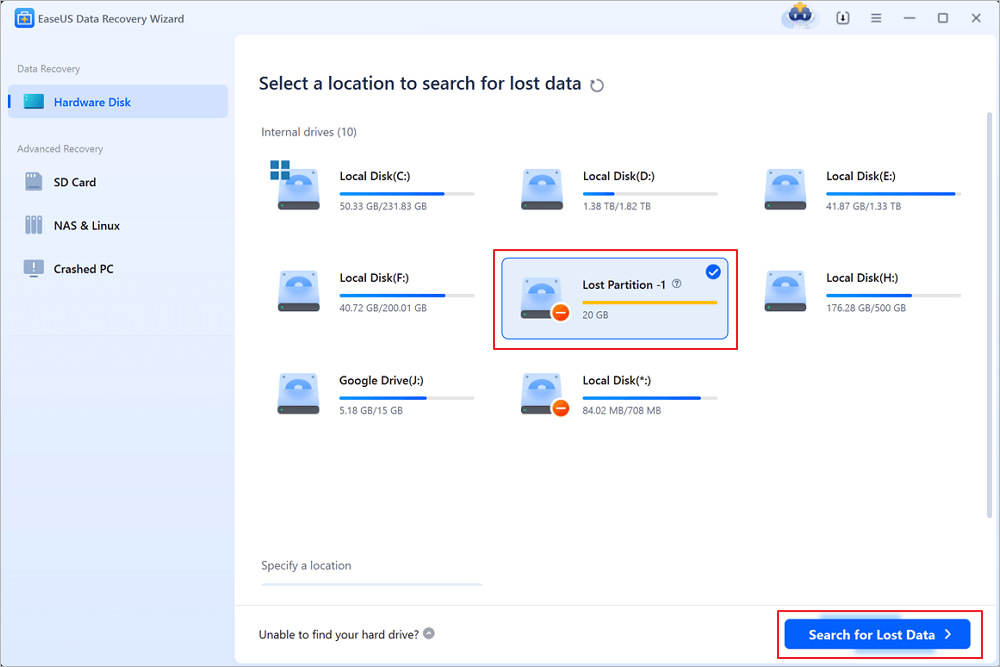
Launch EaseUS Data Recovery Wizard, select "Lost Partition" and click "Search for Lost Data" to search for all the lost data from your lost or deleted partition. If there are many lost partitions, you can identify them through its partition size.
Note: Since the Windows system doesn't support the Linux file system, the Ext2 or Ext3 partition will be recognized as lost partition with no drive letter in the software. If you want to recover data from Ext2/Ext3 partition, you can follow these steps.
Step 2. Filter the scanned results
Because there will be a lot of scanned files, you can choose a file category for quick filtering, such as Pictures, Videos, Documents, Audio, and Others. Or if you remember the file name, you can just look it up in the search box in the upper right corner.
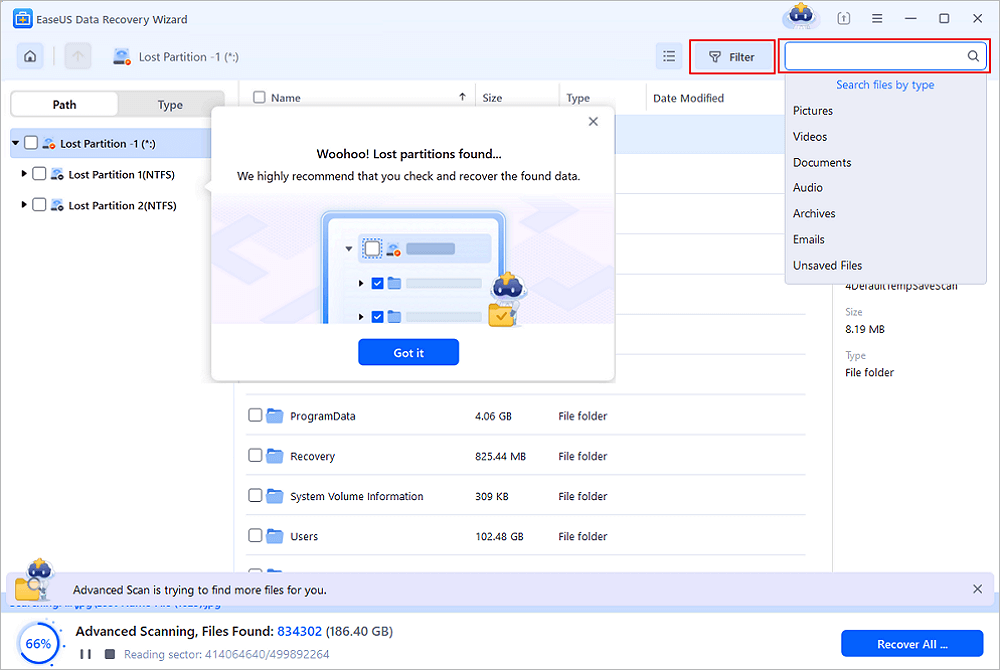
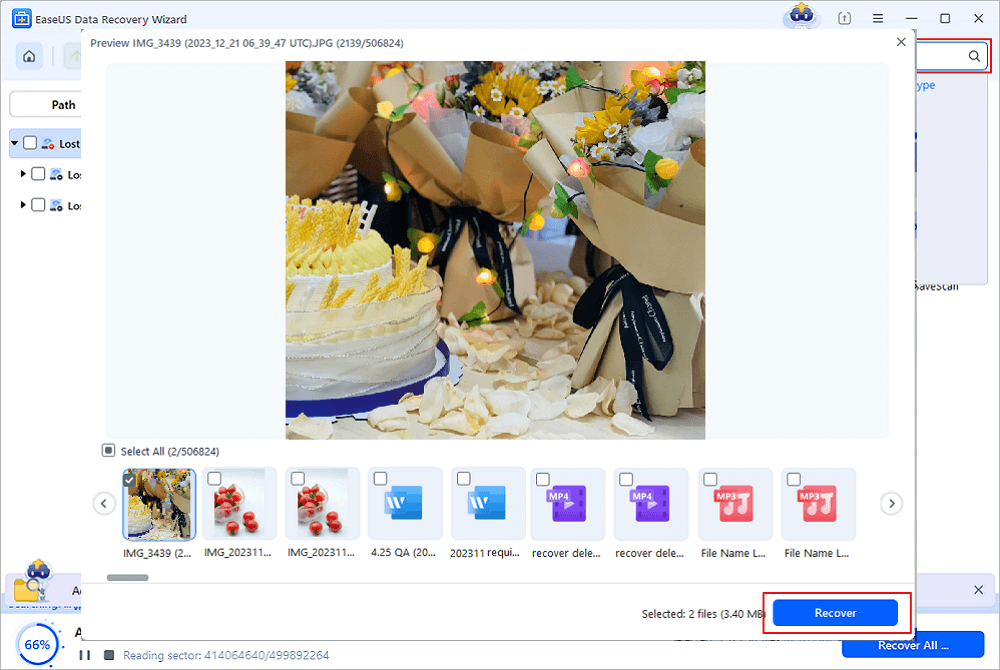
Step 3. Preview and recover data from the lost partition
Before recovery, you can preview the file to make sure it is the data you need. Choose all the files you need and click "Recover" to restore them. Choose a storage location (including cloud storage, such as OneDrive, Google Drive, etc.), and click "Save" to save your recovered files.
Many people who need HDD partition recovery will choose EaseUS recovery software because it's safe and trustworthy. You can check the following reviews:
| 🔍Reviews |
|
Here's a helpful video that introduces how to perform lost partition recovery and restore missing data:
- 00:45 Run Chkdsk Command to Recover Lost Partition
- 02:01 Recover Data from Lost Partition Using Data Recovery Tool
- 03:03 Allocate New Partition to Store Files
If this article helps, share it on your SNS to help people facing a lost partition issue and perform lost partition data recovery!
Backup in Advance to Avoid Partition Loss
Here are the common causes of partition loss, and an advanced backup is necessary for restoring lost partition files without data loss!
Common Causes of Lost Partitions
- Accidental deletion: you may mistakenly delete an entire volume when you try to clean a specific partition
- Corrupted partition table: The partition table can be damaged by viruses or faulty disk operations, leading to a lost partition.
- Power failure: a sudden power outage may make the partition inaccessible.
- Bad sectors: If the partition has bad sectors, your computer can not recognize them.
- Upgrades: upgrades will change the hard drive.
- Repartition: when you repartition the hard drive, all the existing partitions will be deleted
If you want a way to recover partition in a way that won't delete your newer content, the best approach would be a regular full image backup of your hard drive or external hard drive. Backup in advance is the most effective way to recover deleted partitions. You can even just enable the File History or Windows Backup functionality on your Windows computer to back up files automatically.
To Sum Up
In a nutshell, this post is mainly written for people who wish to recover data from deleted or lost partitions on an HDD or a removable disk, like an external hard drive. EaseUS data recovery tool helps restore files from lost or deleted partitions without any data loss! If you want to recover the whole lost partition, try EaseUS Partition Recovery.
FAQs on How to Recover Data From Deleted Partition
Here are a few questions related to recovering data from deleted partitions. If you also have any of these problems, you can find the methods here.
How do I recover files from a partitioned hard drive?
Download and use EaseUS Data Recovery Wizard to recover files from a partitioned hard drive:
Step 1. On EaseUS Data Recovery Wizard, select a partition like C: drive, D drive or E drive where you lose your data and click "Scan" to start.
Step 2. After the scan, select and preview found partition data in "Deleted Files" or "Lost Files". The Filter or Search bar may also help you access the lost files.
Step 3. Select all lost partition files and click "Recover" to get everything back. Before making your partition safe to save data again, save all recoverable files to another secure device.
What happens if the recovery partition is deleted?
Generally speaking, after deleting the system-reserved partition and recovery partition, the "Launch Recovery Environment" option is inaccessible. Some users may face the boot issue. You can try to restore deleted system reserved partition in a few ways. Check the guide and see how to make it.
How can I recover my deleted data from hard disk?
Steps to recover deleted files from hard drive with EaseUS file recovery software:
Step 1. Open EaseUS Data Recovery Wizard, you should see a list of all disks on your computer. Choose the exact hard drive partition where files were deleted and click the "Scan" button.
Step 2. The scan process starts immediately. Depending on how large the hard drive is, it usually takes several minutes to several hours to finish the scan. However, the "Deleted files" result comes out very quickly. Check if all the deleted files are showing up.
Step 3. During or after the scan, you can preview the found files by double-click or right-click. Then, select the target files and click "Recover" to save them to another safe place rather than the original hard drive.
Was this page helpful?


 Why Trust EaseUS
 Editor Reviews

20+
Years of experience

160+
Countries and regions

72 Million+
Downloads

4.9 +
Trustpilot Score





Free Data
Recovery Software
Recover data up to 2GB for free!


